How to Get Mercedes-Benz Apps and Internet Radio Working Again
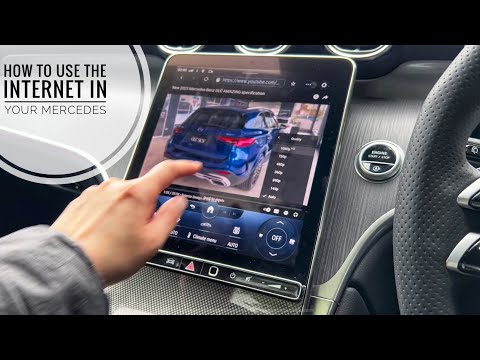
Quick answer: if your Mercedes-Benz Apps or Internet Radio tile will not load, your vehicle may need an internet connection supplied by your phone. On compatible COMAND, Audio 20 and MBUX systems, Bluetooth tethering can provide that connection. The exact menu labels and supported connection methods vary by model, model year, market and fitted equipment.
This guide explains the safe setup sequence, what to check before you start, and when Apple CarPlay or Android Auto is the simpler alternative.
What the infotainment screen looks like
The screen layout differs by vehicle and infotainment generation. These real-world demonstrations show the type of Mercedes-Benz interface discussed in this guide; they are not a substitute for the owner’s manual for your exact model.

nn
Before you start: check compatibility
- Pair your phone first. Your phone must already be paired with the vehicle through Bluetooth.
- Confirm that your vehicle supports internet access through Bluetooth. Some Mercedes-Benz systems and markets use a communication module, Wi-Fi hotspot, USB connection or a different profile instead. A Bluetooth pairing for calls and music does not automatically mean that internet tethering is supported.
- Use an active mobile-data plan. Streaming radio and app content can use meaningful mobile data. Check your network coverage and roaming settings before travelling.
- Park safely before changing settings. Do not configure connectivity or browse apps while driving.
How to connect Mercedes-Benz Apps and Internet Radio using Bluetooth tethering
1. Turn on Bluetooth tethering on your phone
On most Android phones, open Settings and look for Network & Internet, Connections, or Mobile Hotspot and Tethering. Enable Bluetooth tethering.
On an iPhone, go to Settings > Personal Hotspot and enable Allow Others to Join. Keep Bluetooth and mobile data enabled. iPhone availability can depend on your carrier and the vehicle system’s supported Bluetooth profile.
2. Connect the car to the phone’s data connection
With the vehicle parked, open the vehicle’s connectivity settings. Depending on your system, the path may be similar to:
- Settings > System > Wi-Fi & Bluetooth, or
- Settings > Internet / Connectivity.
Select the option to connect to the internet through Bluetooth, then choose your paired smartphone. If the system asks for permission on the phone, approve the internet-sharing request. Leave the phone nearby and unlocked during the initial connection if prompted.
3. Confirm the connection, then open the app
Wait for the display to show that an internet connection is active. Now return to Mercedes-Benz Apps or Internet Radio and allow the service a moment to load. A weak mobile signal can make the first connection slower.
If the app tile still does not load
- Check mobile data on the phone: open a webpage on the phone using cellular data, not only Wi-Fi.
- Switch Bluetooth tethering off and on again, then reconnect from the vehicle’s internet settings.
- Restart the phone and the infotainment system using the normal owner-manual procedure.
- Forget and pair the phone again if the vehicle sees the phone for calls but not as a data source.
- Check the vehicle’s date, time and software status. Incorrect time settings or an overdue software update can affect online services.
- Confirm the service is available for your exact vehicle and market. Older systems may no longer support every legacy online service, while other vehicles require a built-in communication module or a Wi-Fi connection.
If the problem continues, note your Mercedes-Benz model, model year, infotainment system name and the exact message on screen. That information makes it much easier for a qualified Mercedes-Benz workshop or dealer to check compatibility and available updates.
Apple CarPlay and Android Auto: often the easier option
If your Mercedes-Benz is equipped with Apple CarPlay or Android Auto, smartphone integration may be the more practical way to enjoy audio apps. Connect your phone to the vehicle’s designated smartphone-integration USB port, then use compatible apps such as Spotify, Apple Music or TuneIn through the central display.
This does not repair a vehicle’s built-in Mercedes-Benz Apps service, but it can provide a familiar, fast and well-supported route to navigation, calls and audio. Availability depends on the vehicle, software and phone.
Frequently asked questions
Why does my Mercedes-Benz Apps screen say it has no internet?
The system may not have an active compatible data connection, the phone may not be sharing data, or the specific online service may not be available for that vehicle, market or software version.
Can every Mercedes-Benz use Bluetooth tethering?
No. Support differs between COMAND, Audio 20, MBUX and other infotainment variants, as well as by vehicle equipment and market. Check the owner’s manual for your exact vehicle before relying on Bluetooth tethering.
Does Bluetooth tethering use my phone’s data?
Yes. Internet Radio and online applications use the phone’s mobile-data connection when tethering is active. Your mobile-network charges and data limits apply.
What details should I provide when asking for help?
Share the model, model year, infotainment system, phone type, mobile network and the exact on-screen error. A photo of the message—taken only while safely parked—can also help a technician identify the next step.
Need help choosing a connected used vehicle?
When you test-drive a pre-owned vehicle, test the features you will use every day: Bluetooth pairing, phone integration, cameras, steering-wheel controls and infotainment response. Browse Motordeal Premium’s current showroom or contact our team to discuss a vehicle’s equipment before you buy.
Sources and further reading: Mercedes-Benz provides model-specific digital manuals, including guidance for setting up an internet connection via Bluetooth on compatible systems. Always use the manual for your exact vehicle and market: Mercedes-Benz digital manual: internet connection via Bluetooth; Mercedes-Benz digital manual: Bluetooth connection without a communication module.